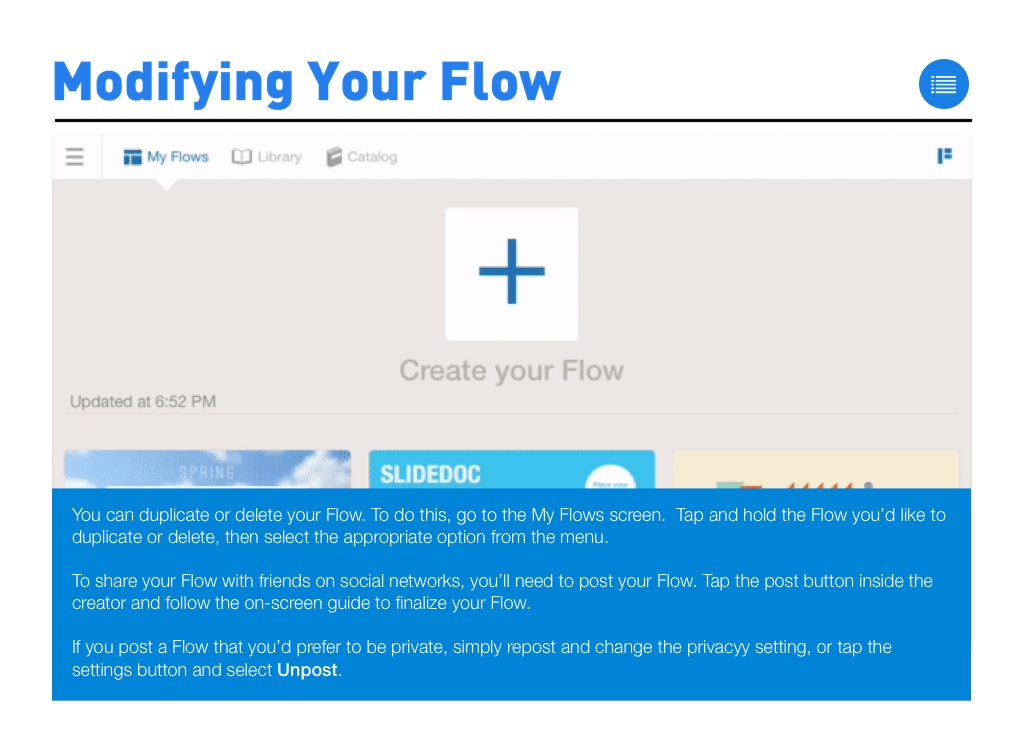
Loading Flow

Downloading Image /
Downloading Image /
Downloading Image /
Downloading Image /
Downloading Image /
Downloading Image /
Downloading Image /
Downloading Image /
Downloading Image /
Downloading Image /
Downloading Image /
Downloading Image /
Downloading Image /
Downloading Image /
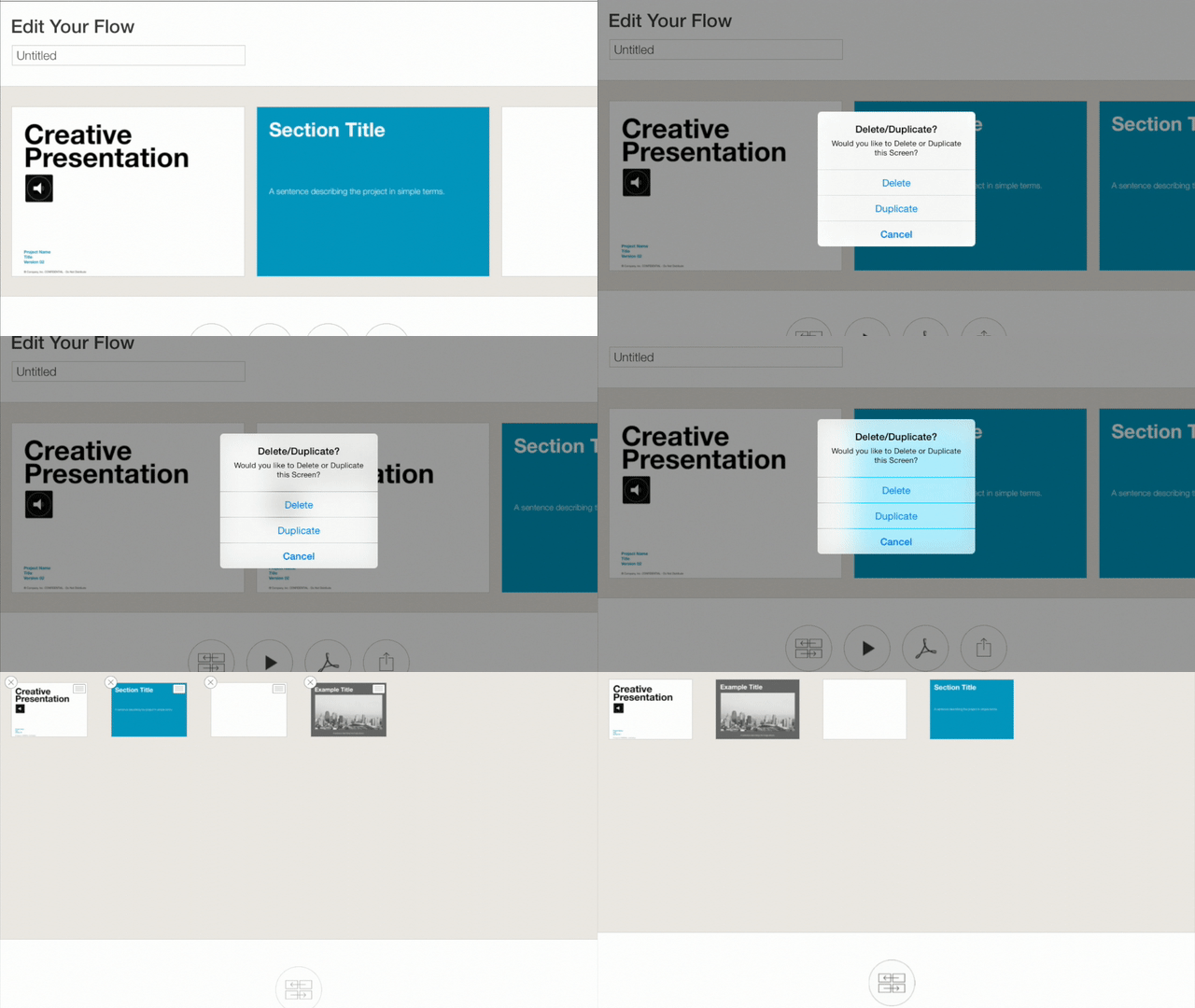

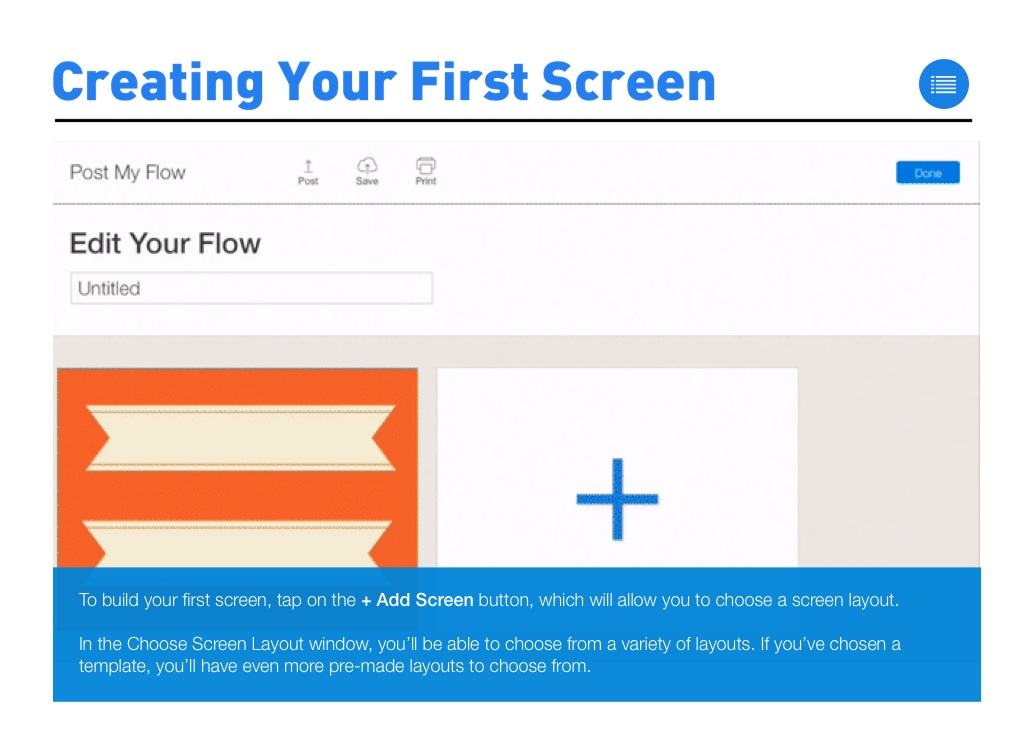
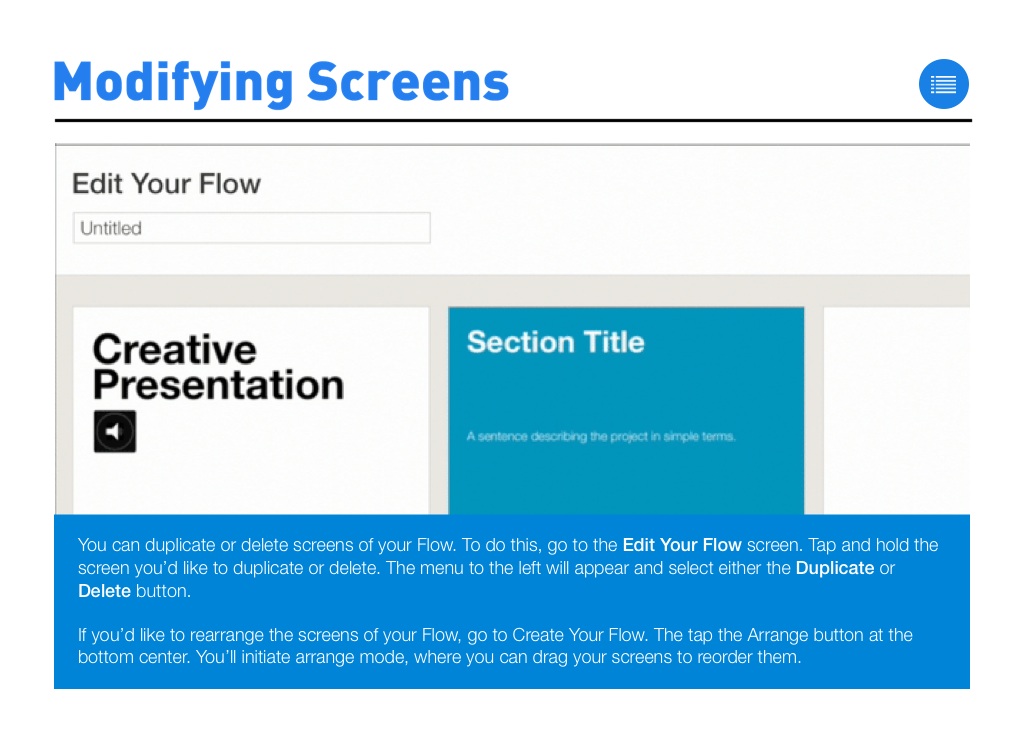
You can duplicate or delete screens of your Flow. To do this, go to the Edit Your Flow screen. Tap and hold the screen you’d like to duplicate or delete. The menu to the left will appear and select either the Duplicate or Delete button.
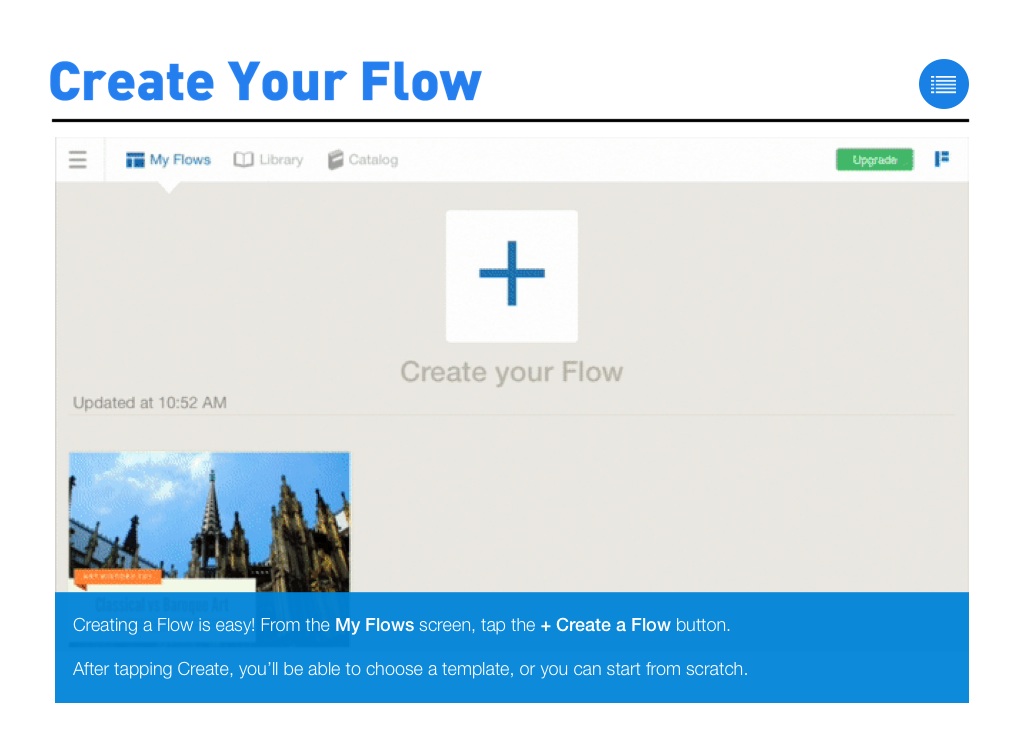
If you’d like to rearrange the screens of your Flow, go to Create Your Flow. The tap the Arrange button at the bottom center. You’ll initiate arrange mode, where you can drag your screens to reorder them.
Downloading Image /
Downloading Image /
Downloading Image /



The FlowVella Guide for iPad
By FlowVella
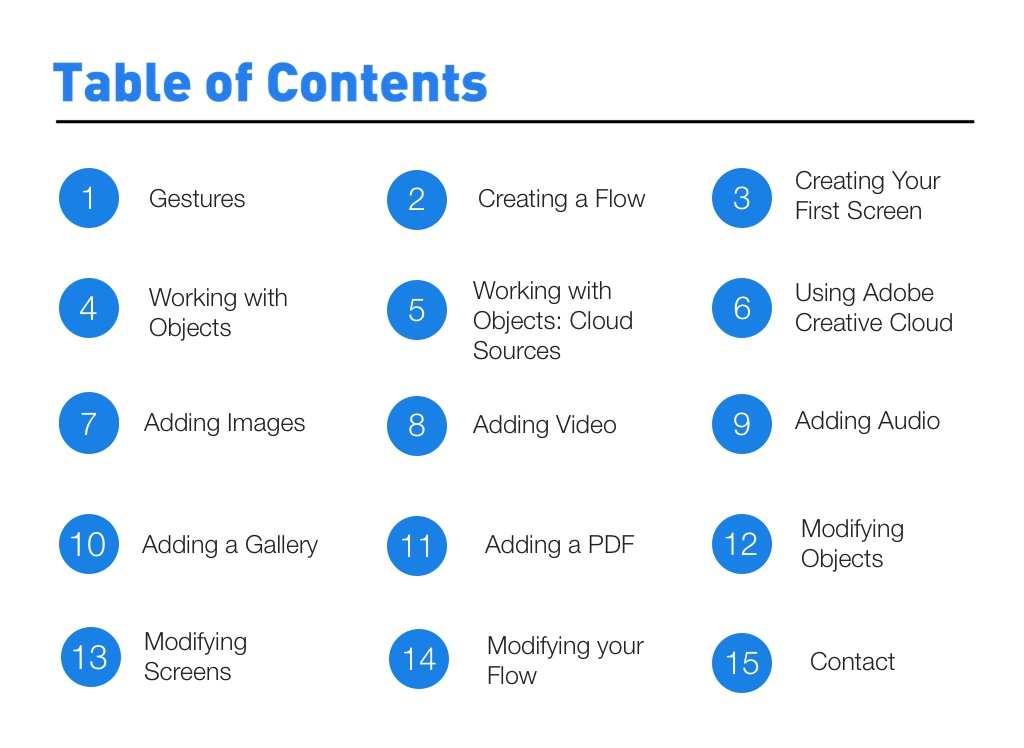
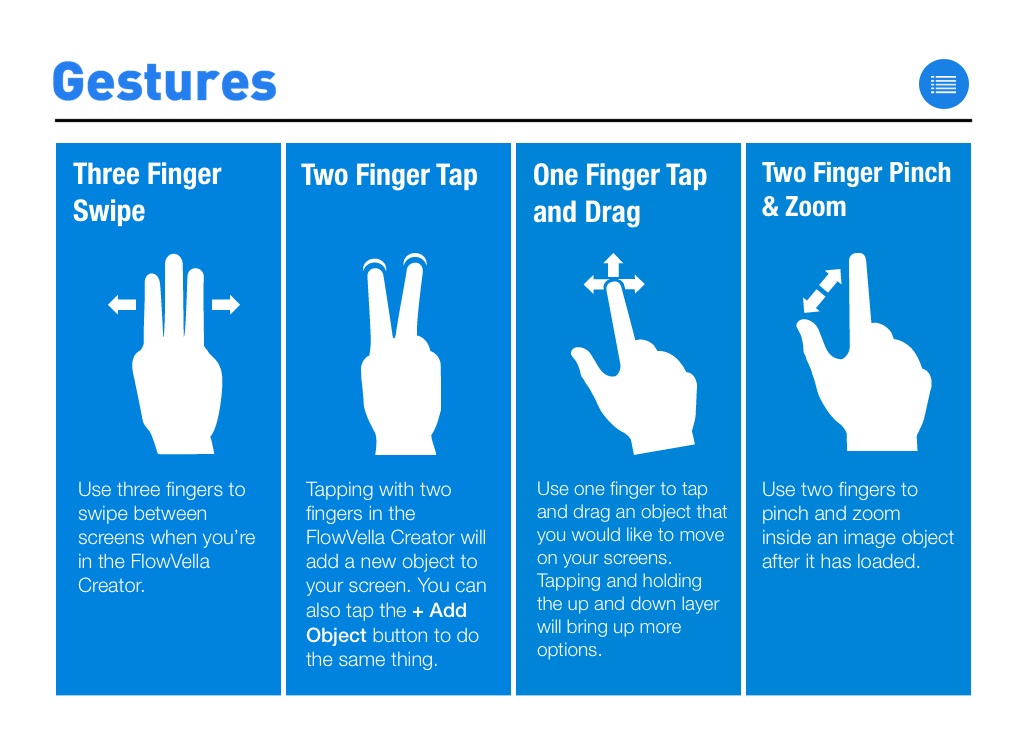
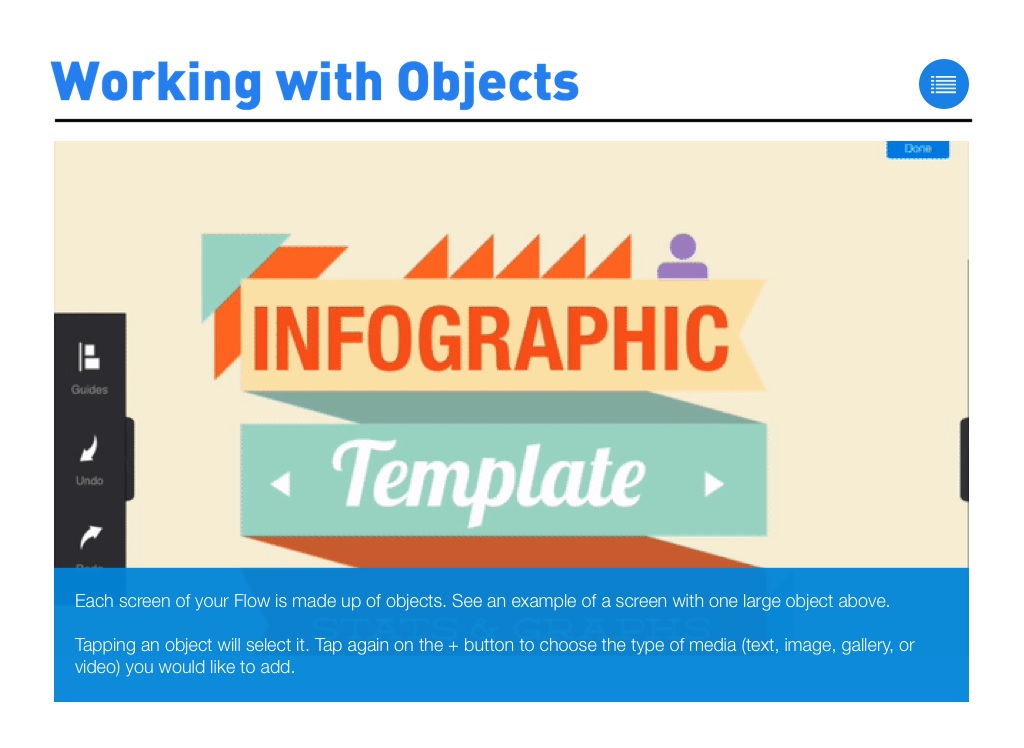
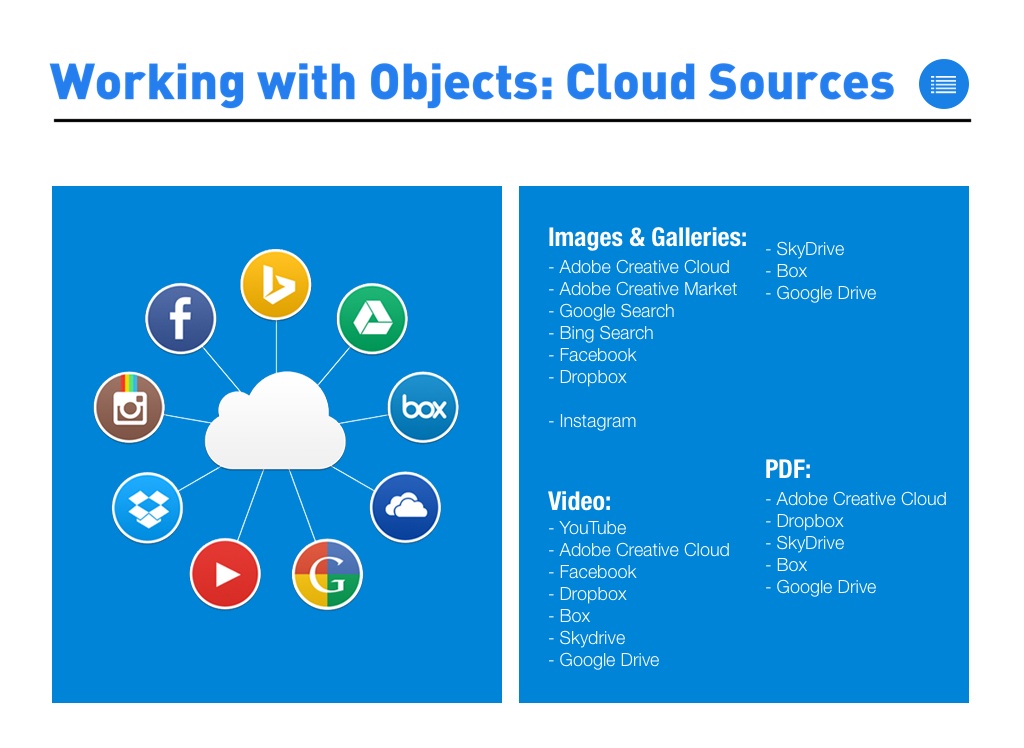
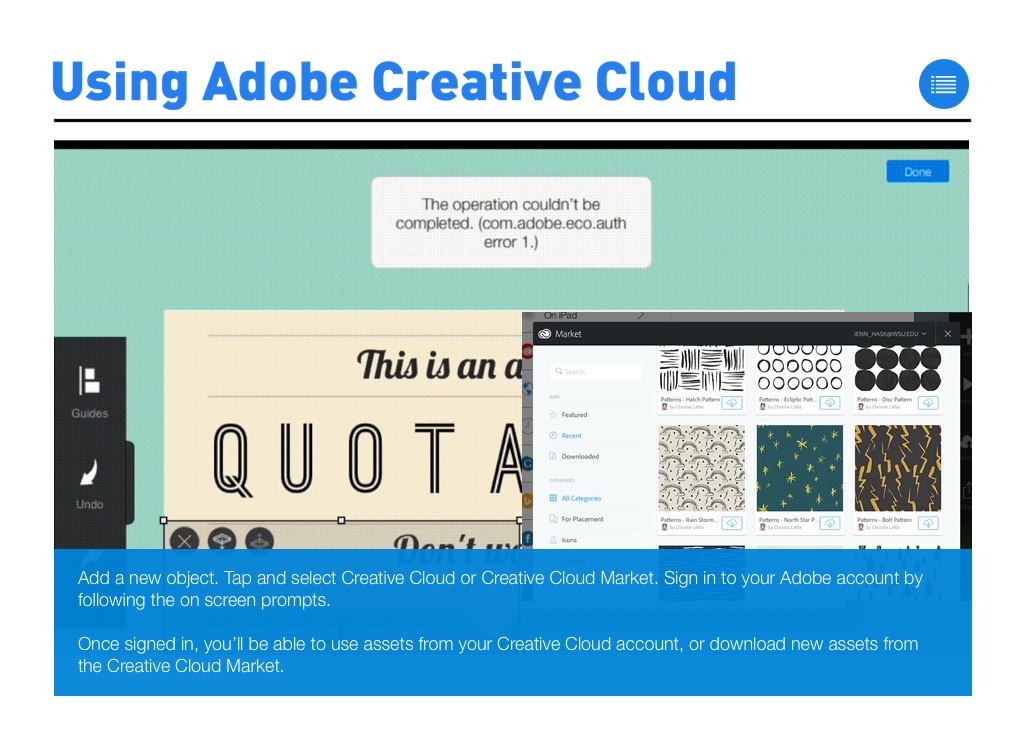
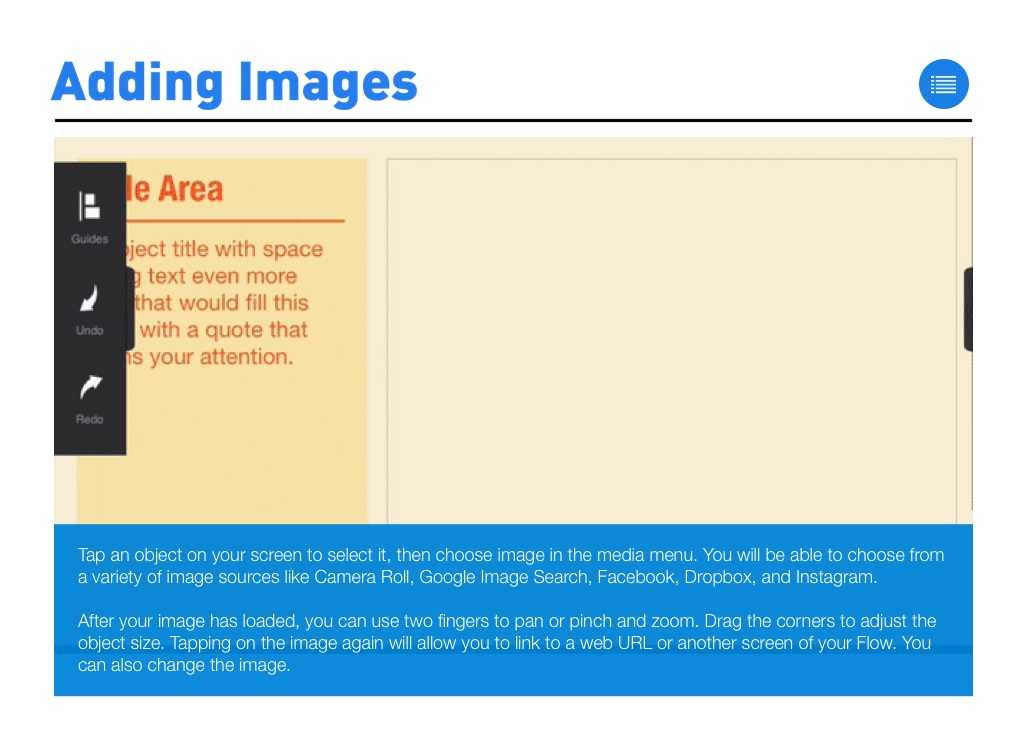
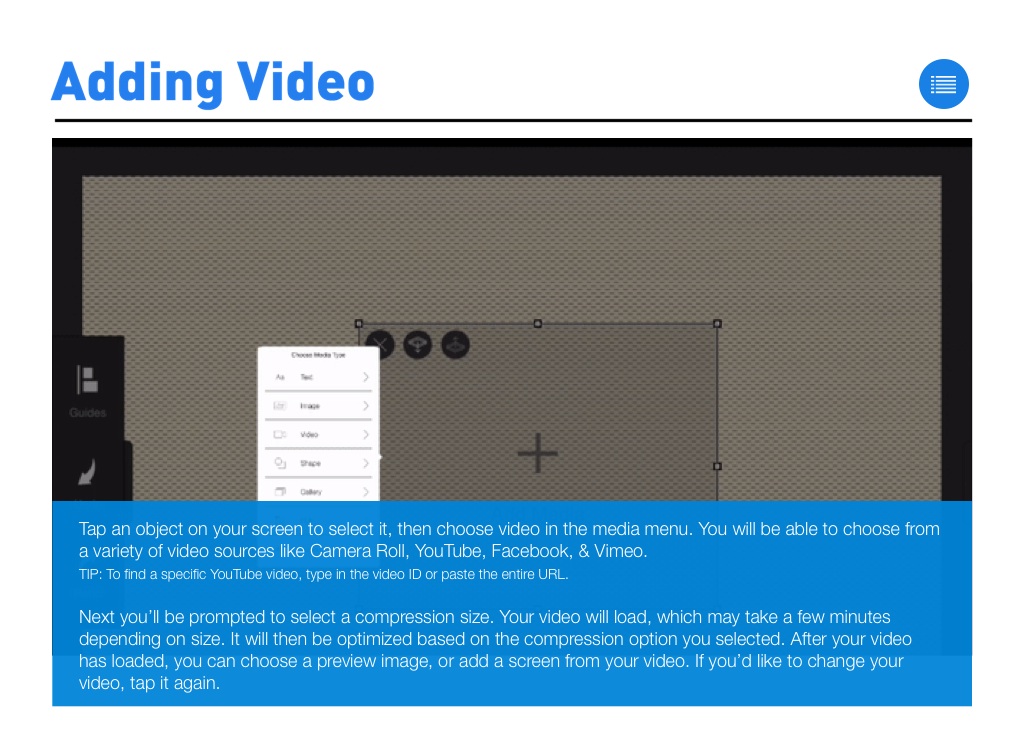
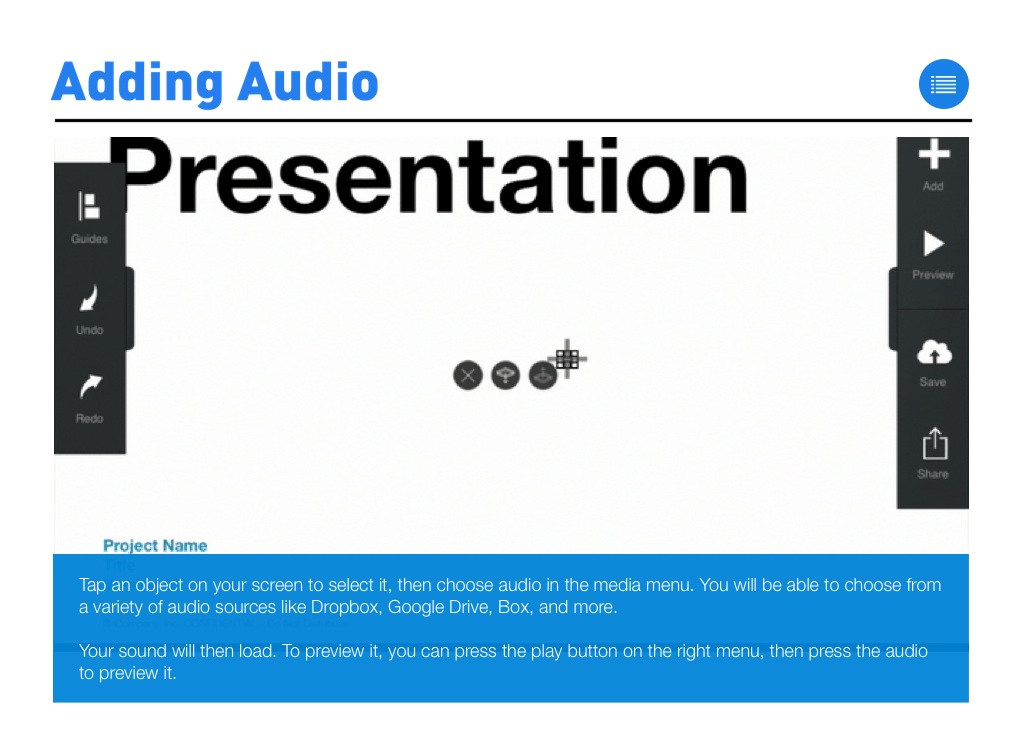
The official guide to FlowVella for iPad to help you create beautiful stories with FlowVella. This guide will walk you through how gestures are used, working with objects, how to add video, images, or galleries, and how to modify your objects and screens.