Loading Flow

Downloading Image /
Downloading Image /
Downloading Image /
Downloading Image /
Downloading Image /
Downloading Image /
Downloading Image /
Downloading Image /
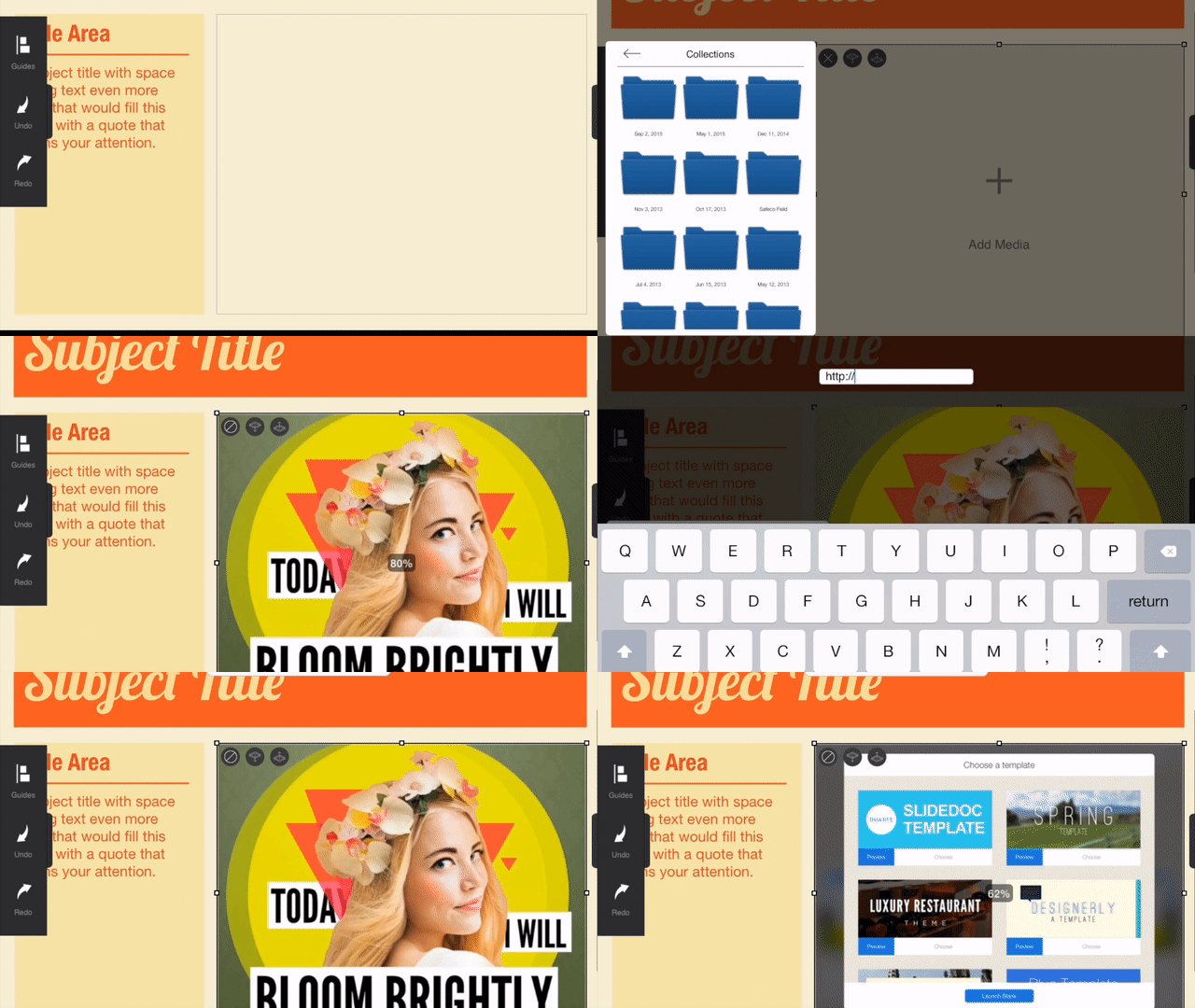

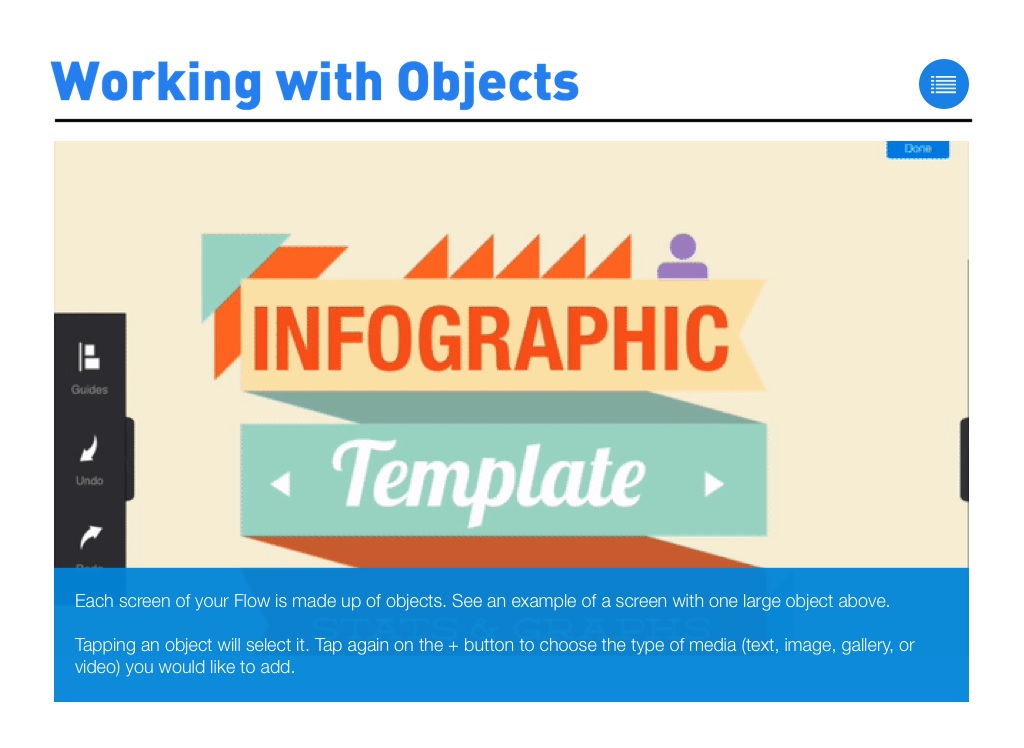
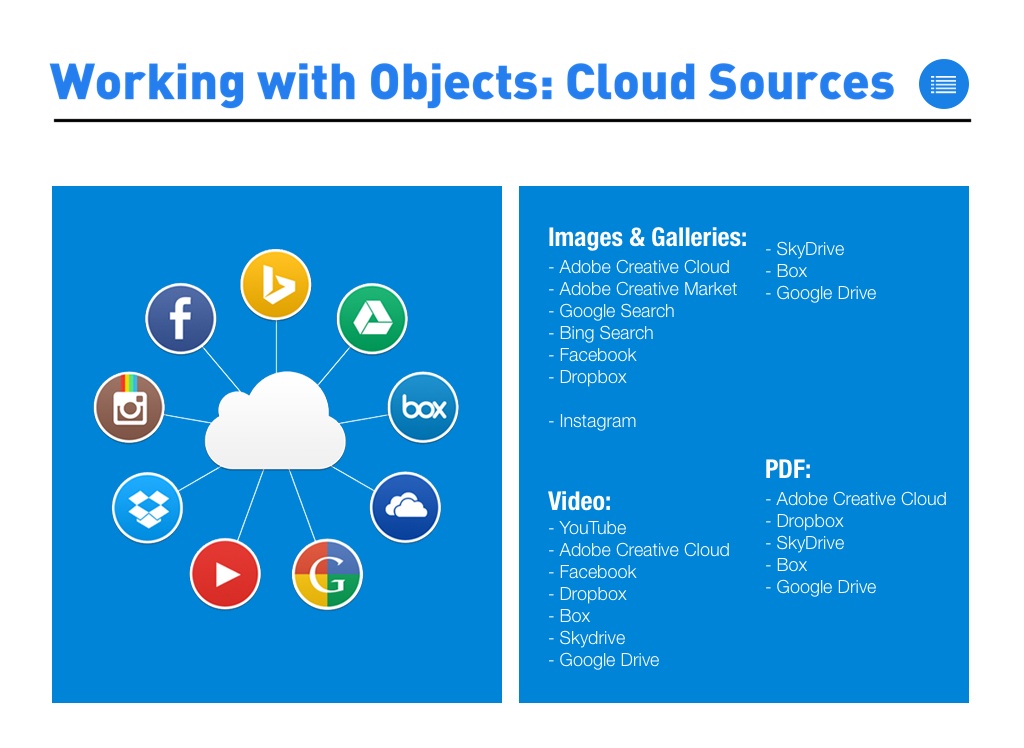
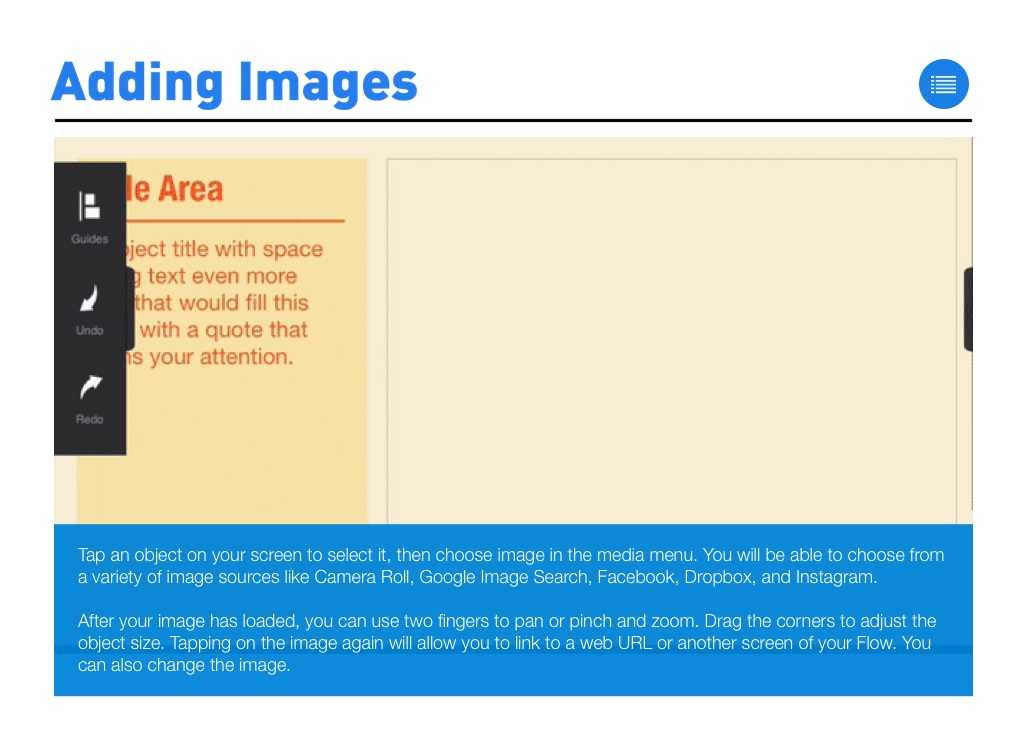
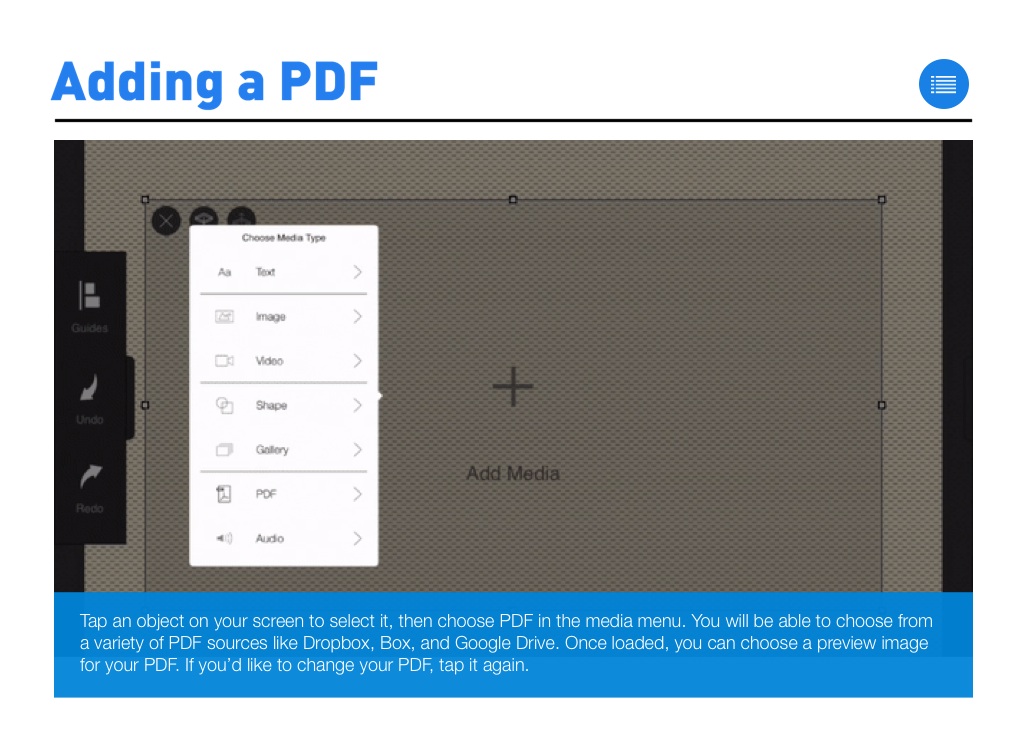
Tap an object on your screen to select it, then choose image in the media menu. You will be able to choose from a variety of image sources like Camera Roll, Google Image Search, Facebook, Dropbox, and Instagram.
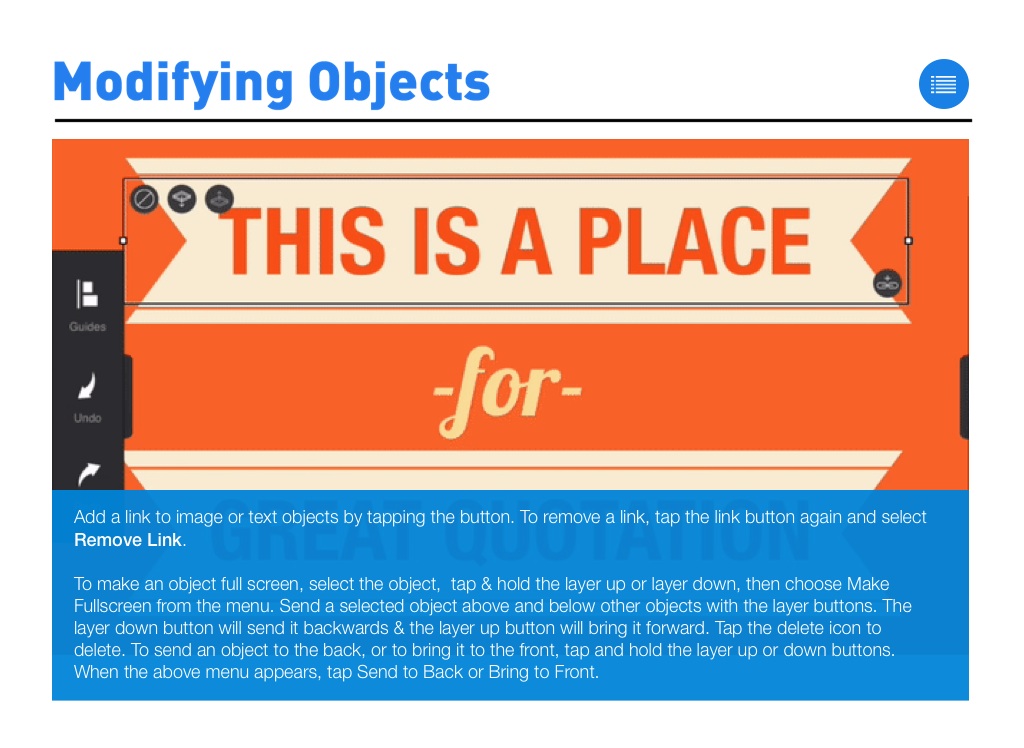
After your image has loaded, you can use two fingers to pan or pinch and zoom. Drag the corners to adjust the object size. Tapping on the image again will allow you to link to a web URL or another screen of your Flow. You can also change the image.
Downloading Image /
Downloading Image /
Downloading Image /
Downloading Image /
Downloading Image /
Downloading Image /
Downloading Image /
Downloading Image /
Downloading Image /



The FlowVella Guide for iPad
By FlowVella
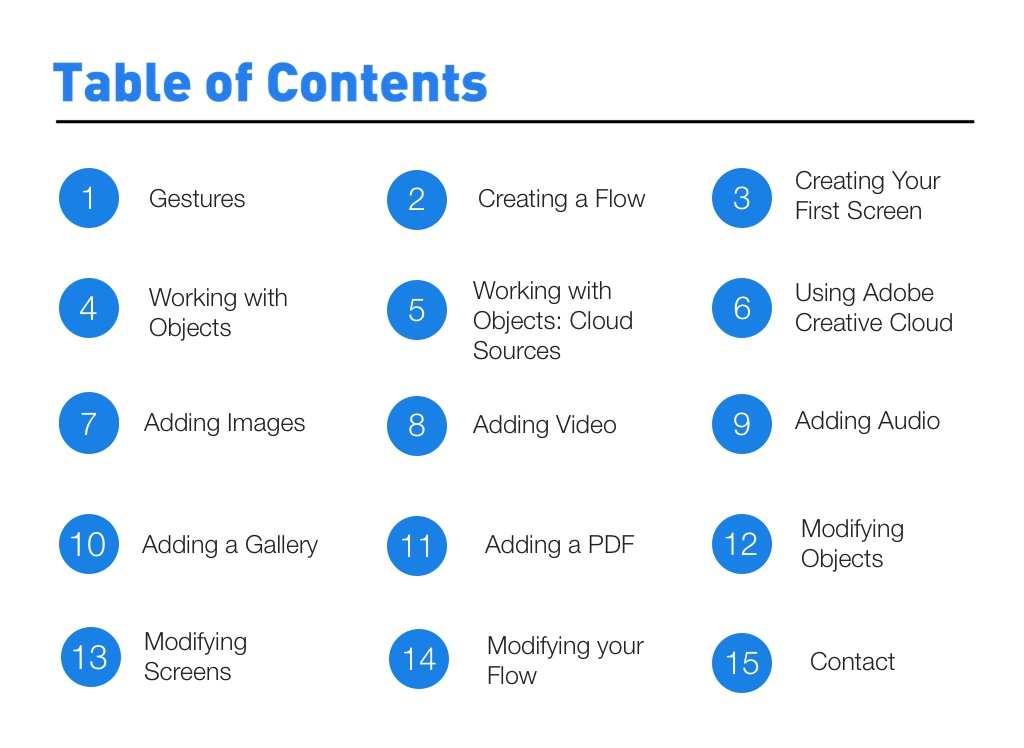
The official guide to FlowVella for iPad to help you create beautiful stories with FlowVella. This guide will walk you through how gestures are used, working with objects, how to add video, images, or galleries, and how to modify your objects and screens.