
Loading Flow

Downloading Image /
Downloading Image /
Downloading Image /
Downloading Image /
Downloading Image /
Downloading Image /

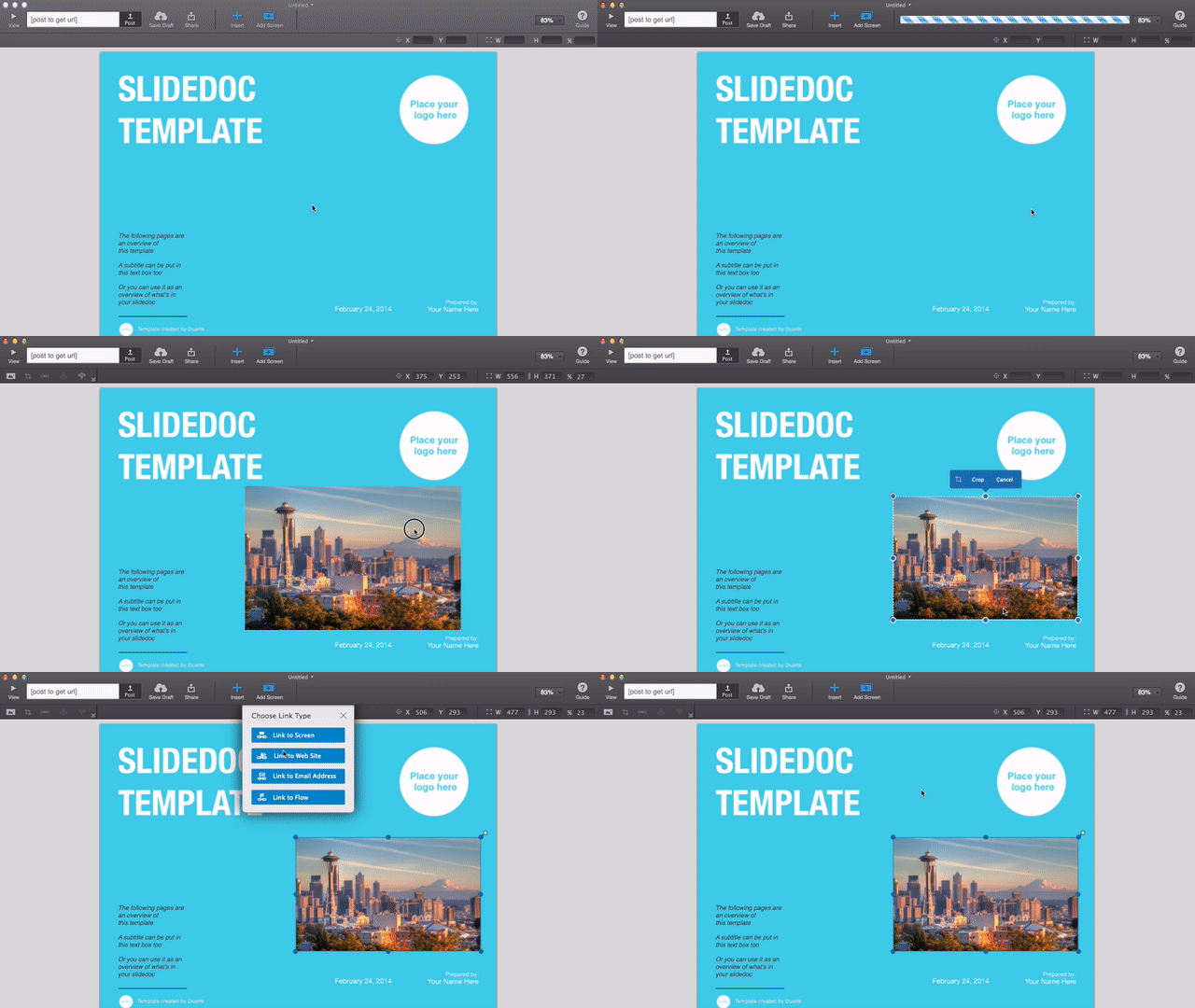

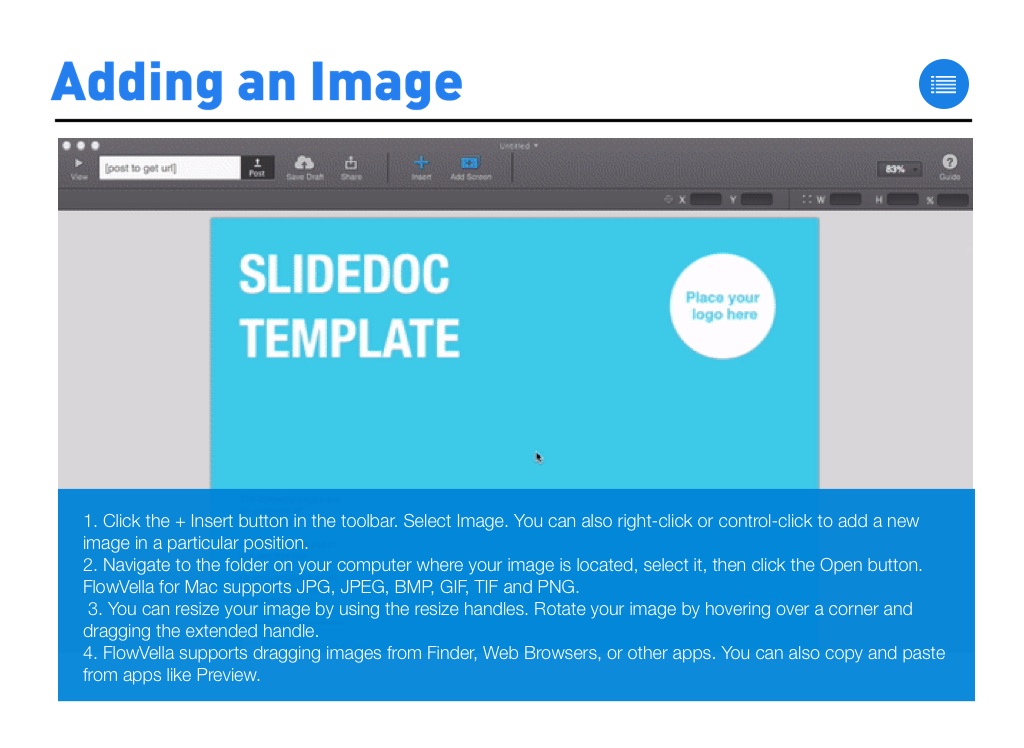
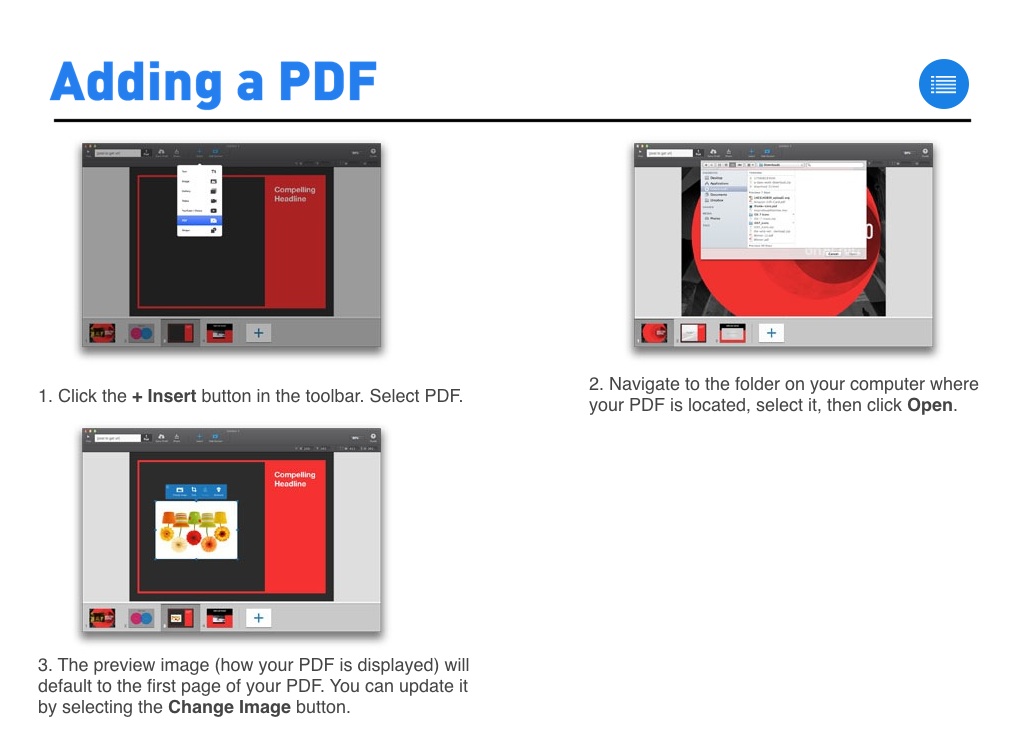
1. Click the + Insert button in the toolbar. Select Image. You can also right-click or control-click to add a new image in a particular position.
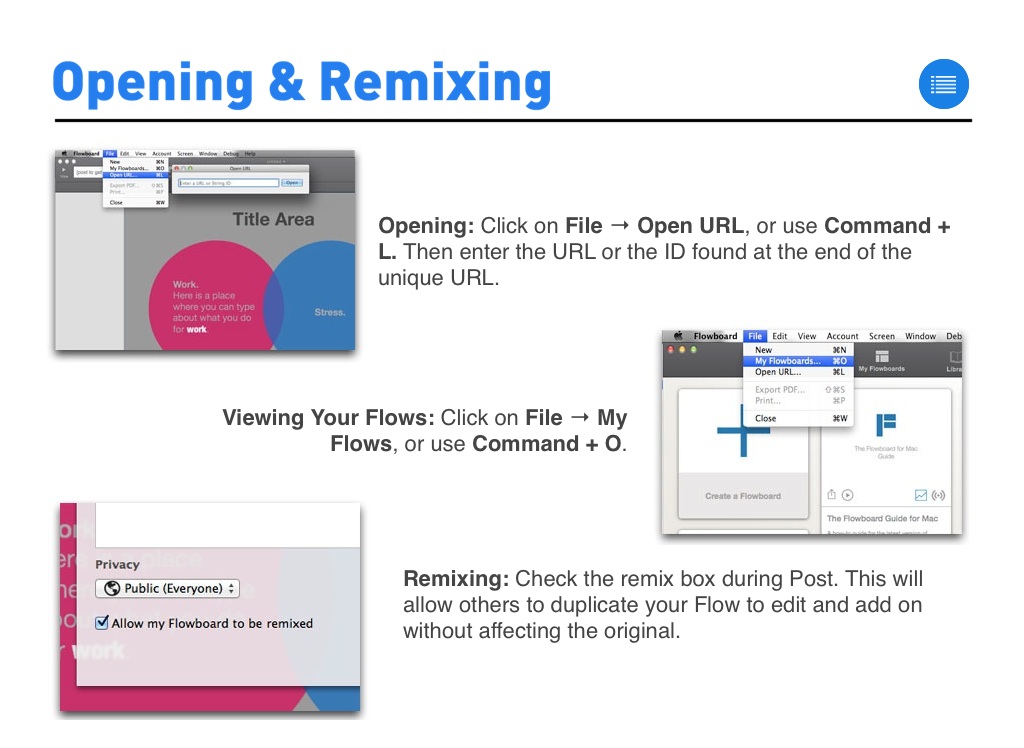
2. Navigate to the folder on your computer where your image is located, select it, then click the Open button. FlowVella for Mac supports JPG, JPEG, BMP, GIF, TIF and PNG.
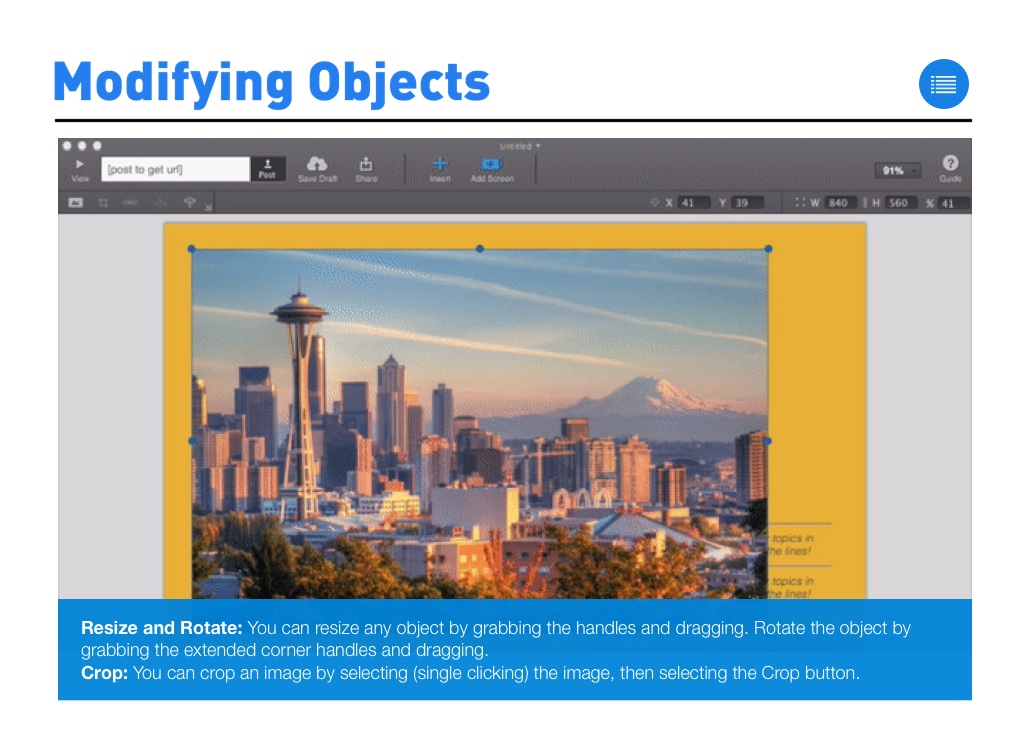
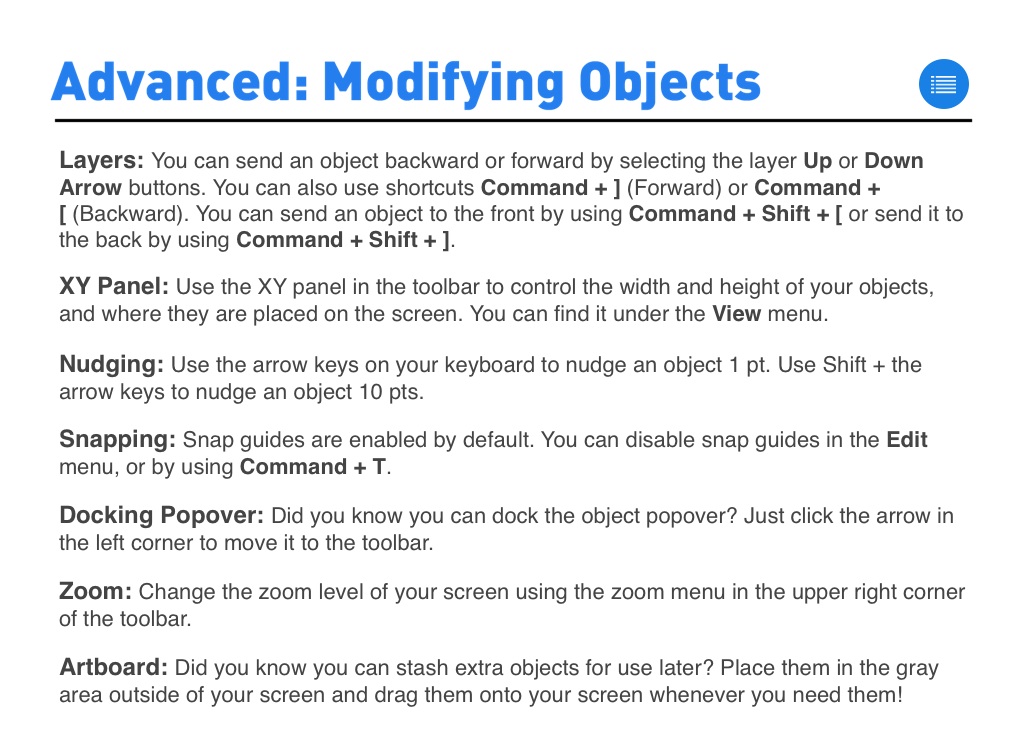
3. You can resize your image by using the resize handles. Rotate your image by hovering over a corner and dragging the extended handle.
4. FlowVella supports dragging images from Finder, Web Browsers, or other apps. You can also copy and paste from apps like Preview.
Downloading Image /
Downloading Image /
Downloading Image /
Downloading Image /
Downloading Image /
Downloading Image /
Downloading Image /
Downloading Image /
Downloading Image /
Downloading Image /
Downloading Image /
Downloading Image /
Downloading Image /
Downloading Image /



The FlowVella Guide for Mac
By FlowVella
A how-to guide for the latest version of FlowVella for Mac.