







Loading Flow

Downloading Image /
Downloading Image /
Downloading Image /
Downloading Image /
Downloading Image /
Downloading Image /
Downloading Image /
Downloading Image /
Downloading Image /
Downloading Image /


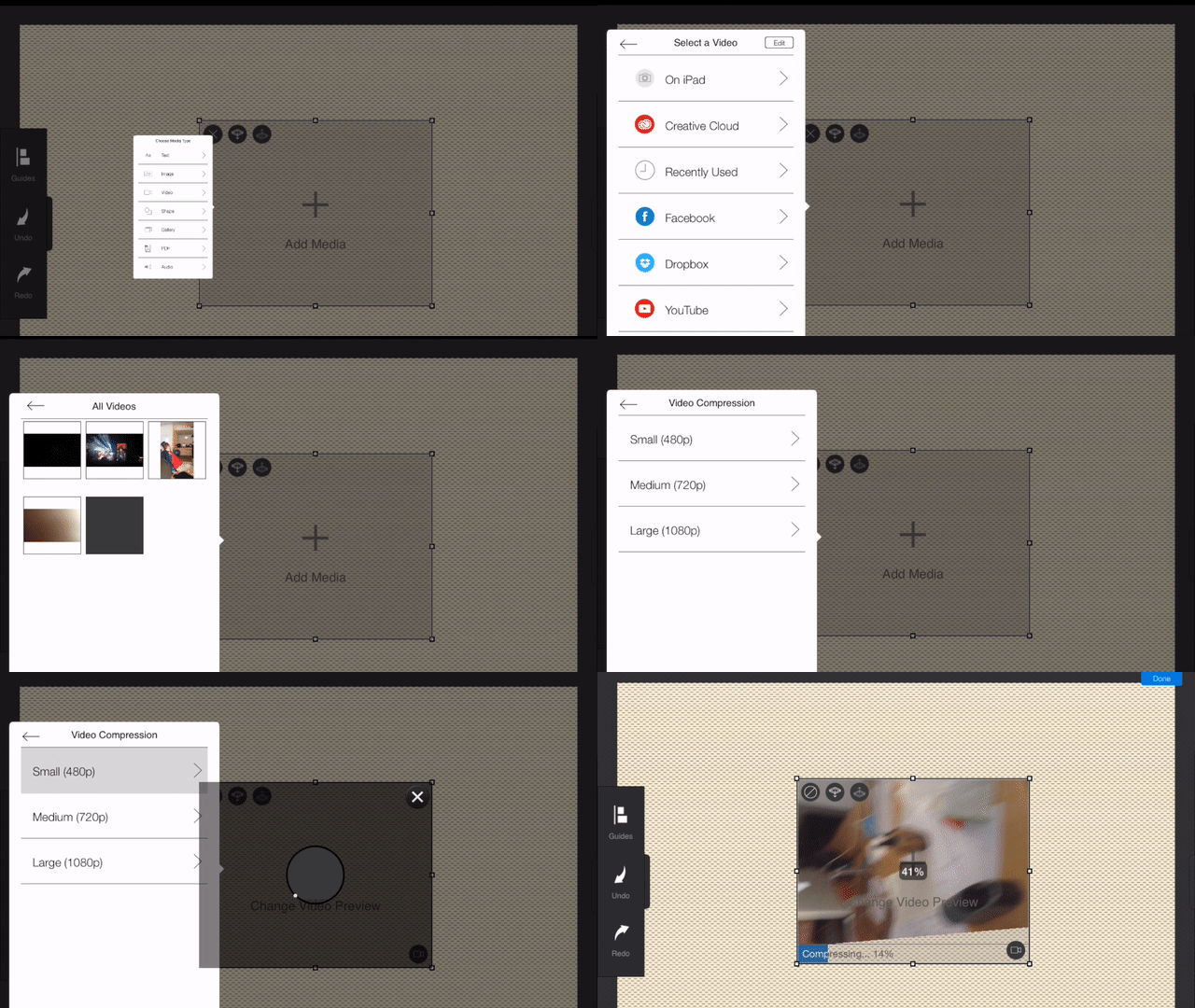
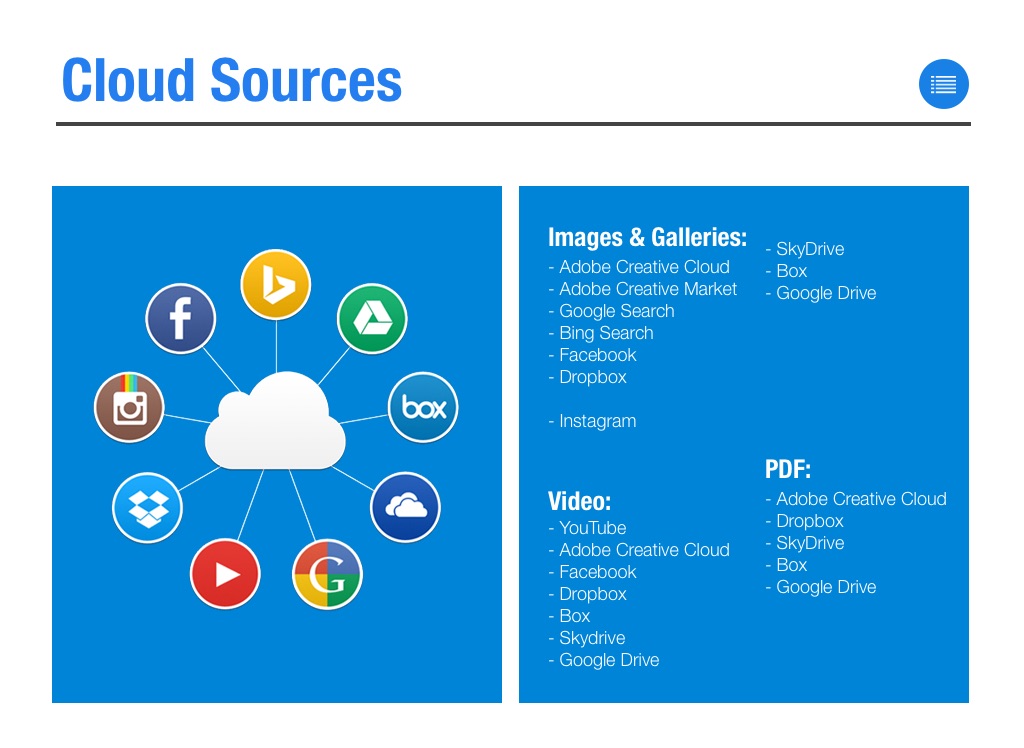
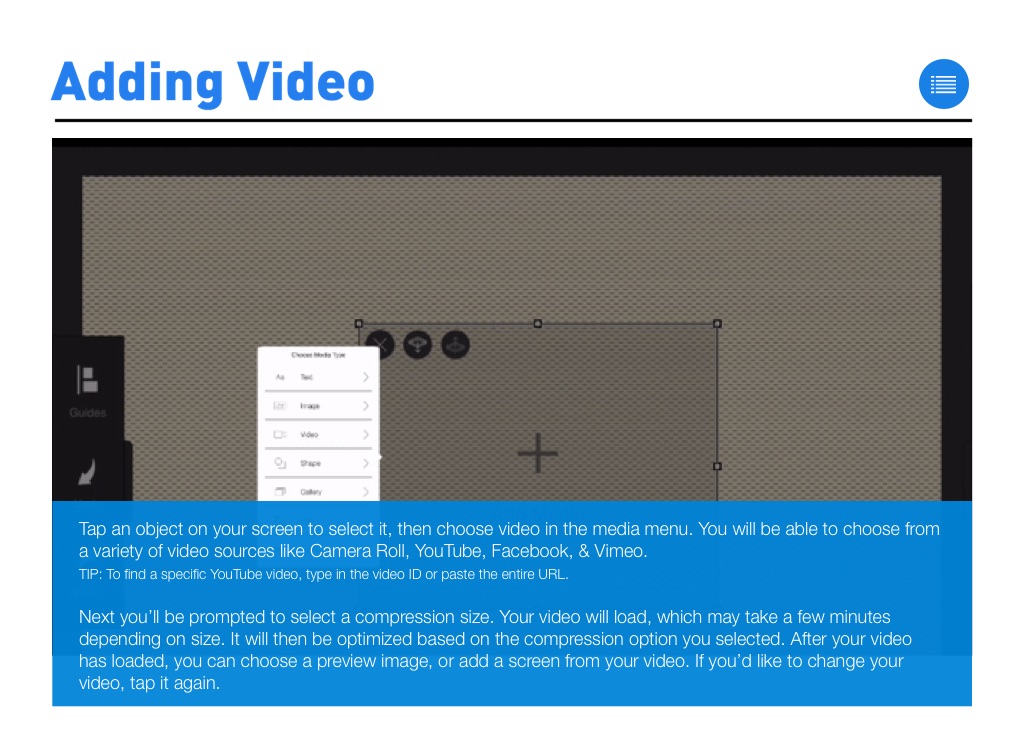
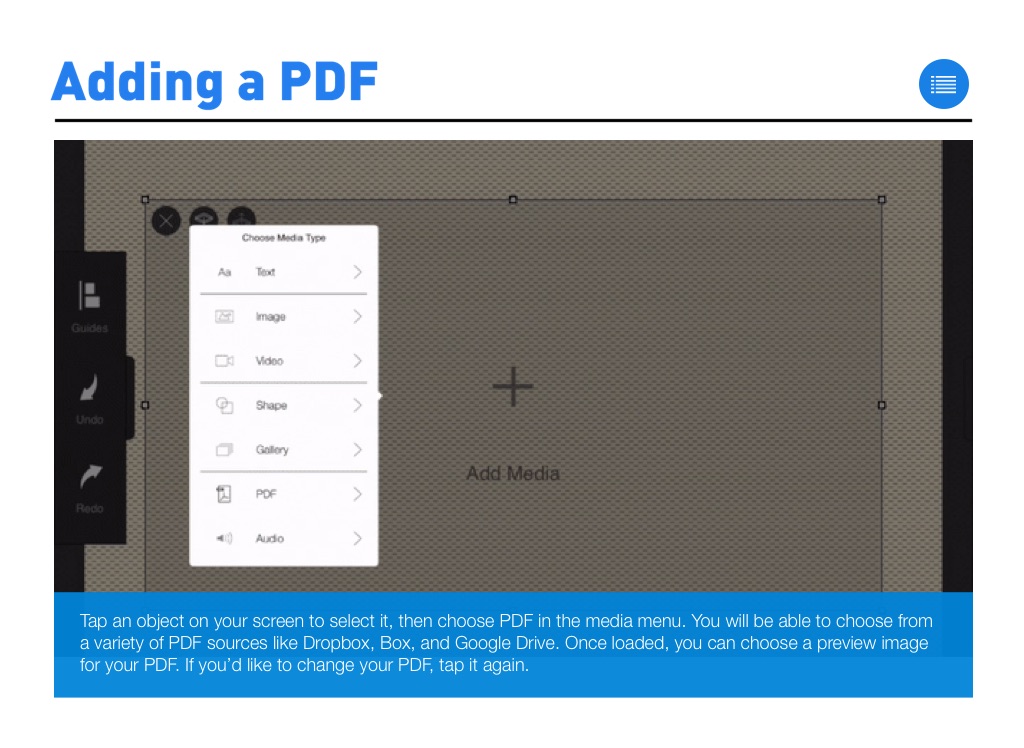
Tap an object on your screen to select it, then choose video in the media menu. You will be able to choose from a variety of video sources like Camera Roll, YouTube, Facebook, & Vimeo.
TIP: To find a specific YouTube video, type in the video ID or paste the entire URL.
Next you’ll be prompted to select a compression size. Your video will load, which may take a few minutes depending on size. It will then be optimized based on the compression option you selected. After your video has loaded, you can choose a preview image, or add a screen from your video. If you’d like to change your video, tap it again.
Downloading Image /
Downloading Image /
Downloading Image /
Downloading Image /
Downloading Image /
Downloading Image /
Downloading Image /
Downloading Image /
Downloading Image /
Downloading Image /
Downloading Image /
Downloading Image /
Downloading Image /
Downloading Image /
Downloading Image /
Downloading Image /
Downloading Image /