




Loading Flow

Downloading Image /
Downloading Image /
Downloading Image /
Downloading Image /
Downloading Image /
Downloading Image /
Downloading Image /
Downloading Image /
Downloading Image /
Downloading Image /
Downloading Image /
Downloading Image /
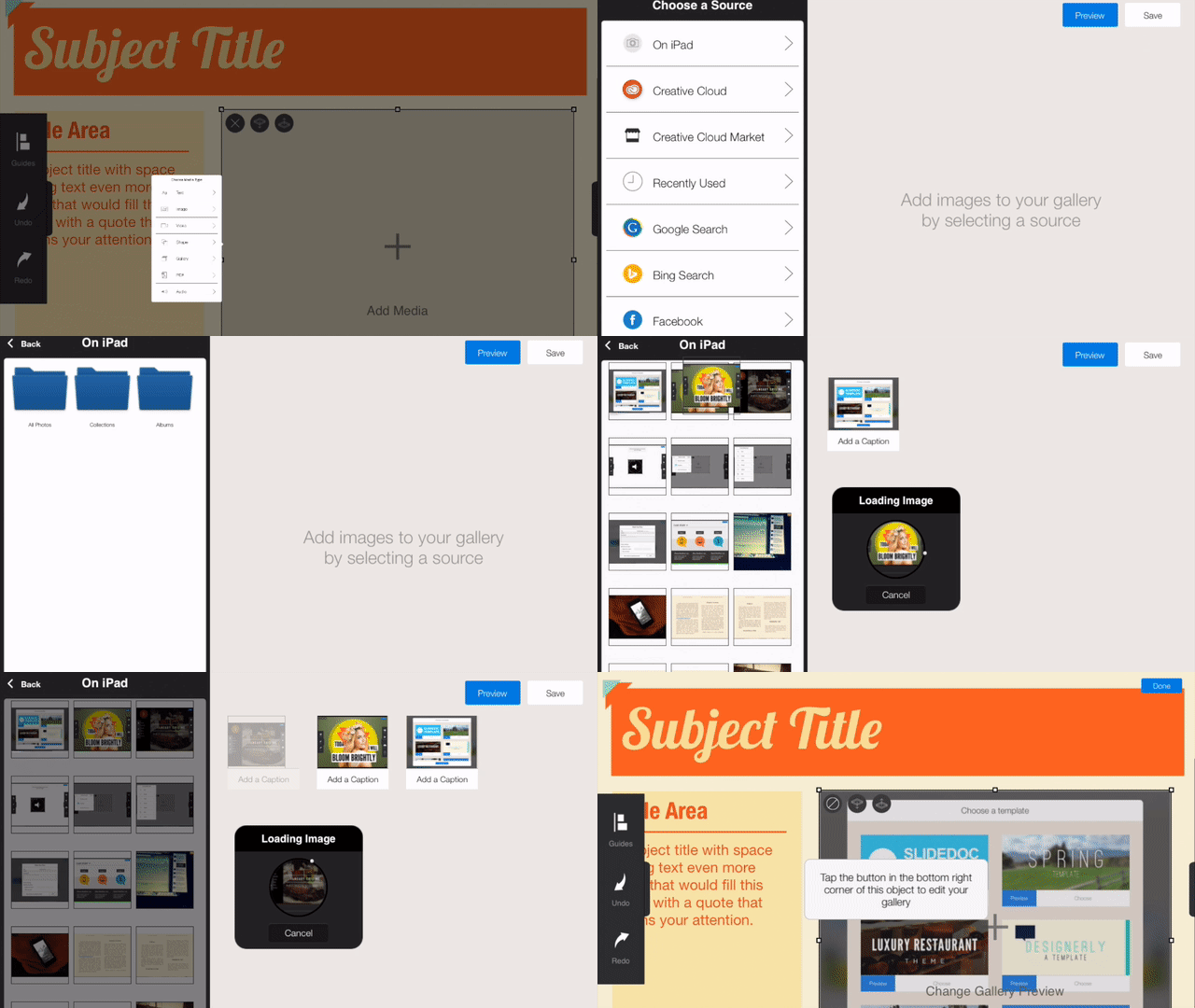

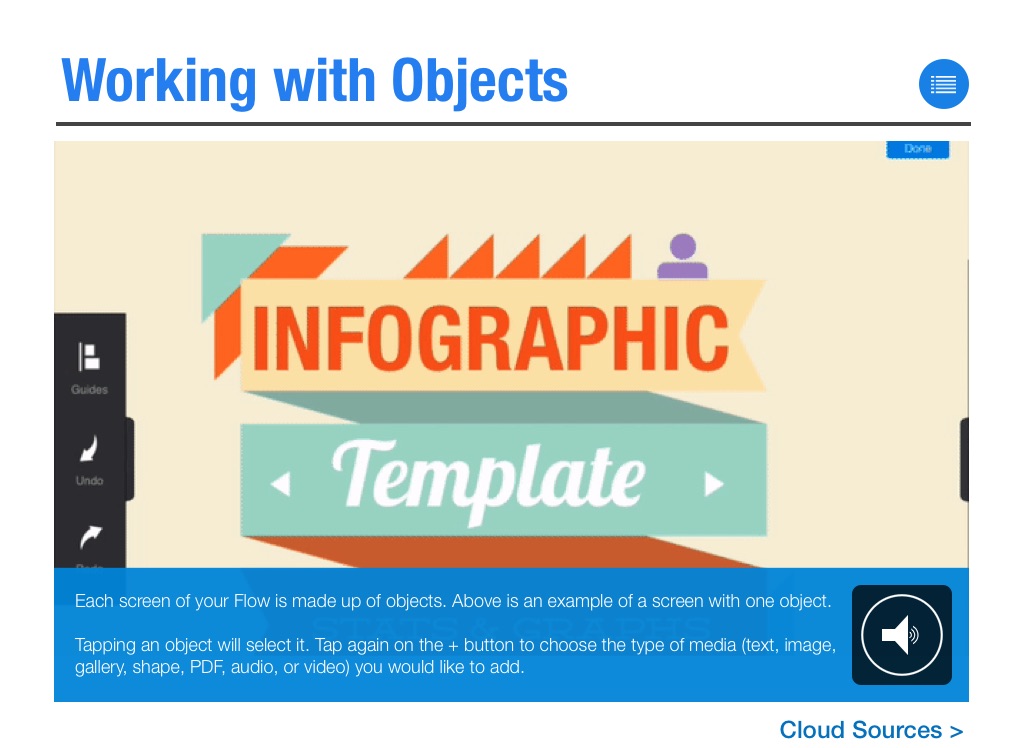
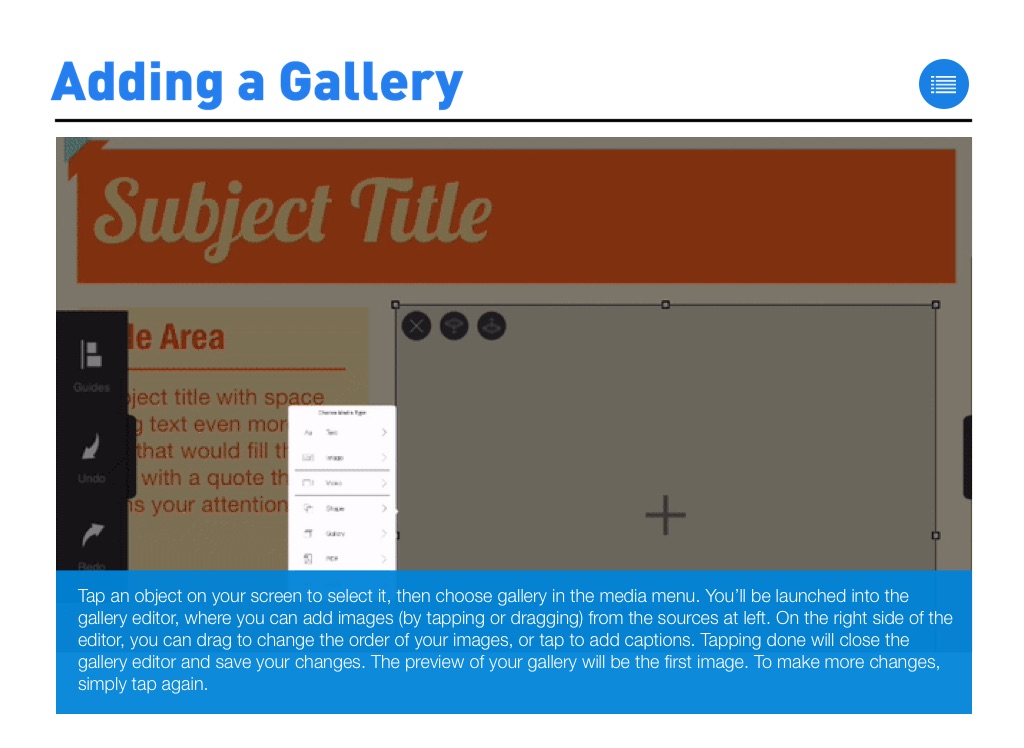
Tap an object on your screen to select it, then choose gallery in the media menu. You’ll be launched into the gallery editor, where you can add images (by tapping or dragging) from the sources at left. On the right side of the editor, you can drag to change the order of your images, or tap to add captions. Tapping done will close the gallery editor and save your changes. The preview of your gallery will be the first image. To make more changes, simply tap again.
Downloading Image /
Downloading Image /
Downloading Image /
Downloading Image /
Downloading Image /
Downloading Image /
Downloading Image /
Downloading Image /
Downloading Image /
Downloading Image /
Downloading Image /
Downloading Image /
Downloading Image /
Downloading Image /
Downloading Image /