





Loading Flow

Downloading Image /
Downloading Image /
Downloading Image /
Downloading Image /
Downloading Image /
Downloading Image /
Downloading Image /
Downloading Image /
Downloading Image /
Downloading Image /
Downloading Image /
Downloading Image /
Downloading Image /
Downloading Image /
Downloading Image /
Downloading Image /
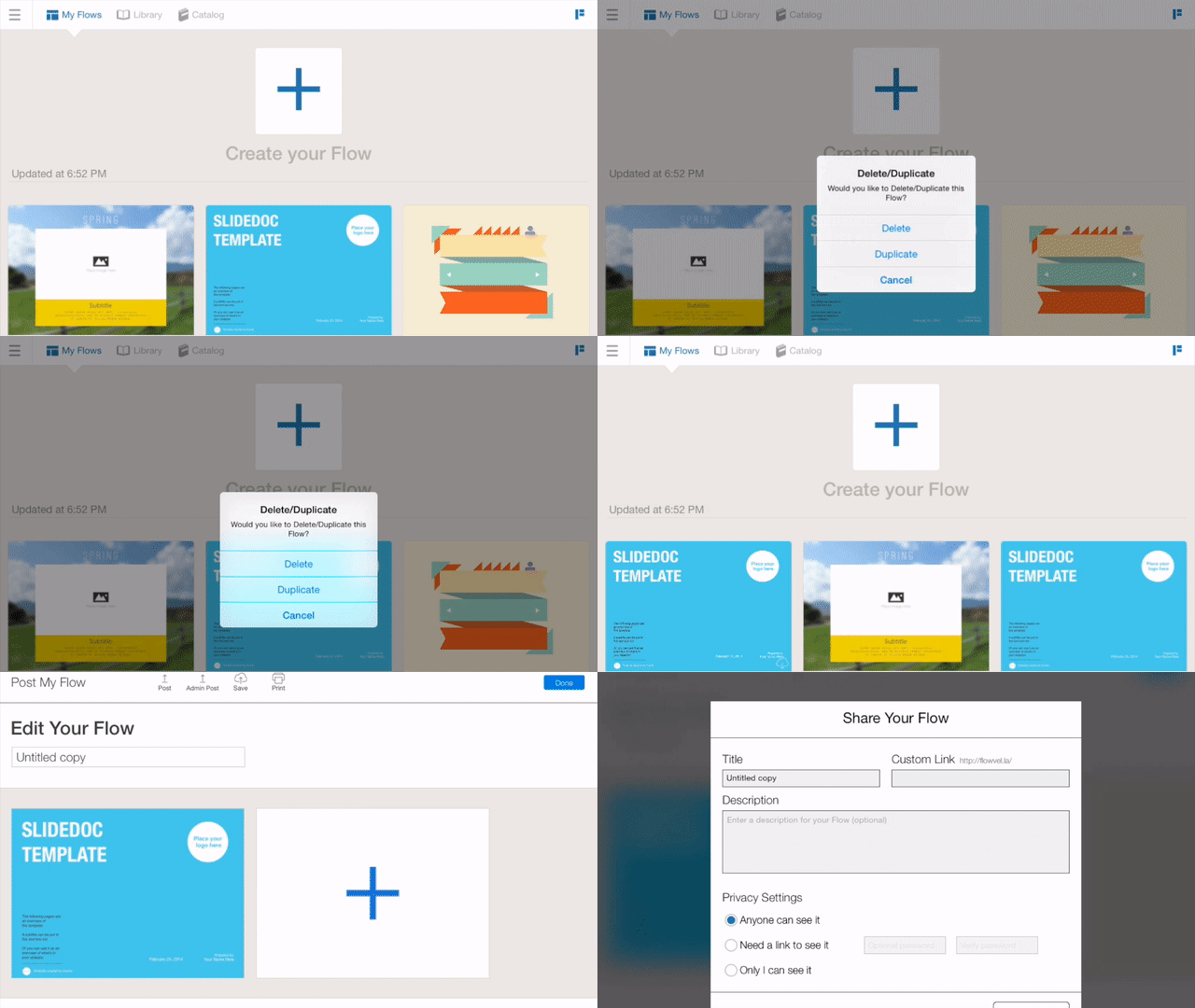

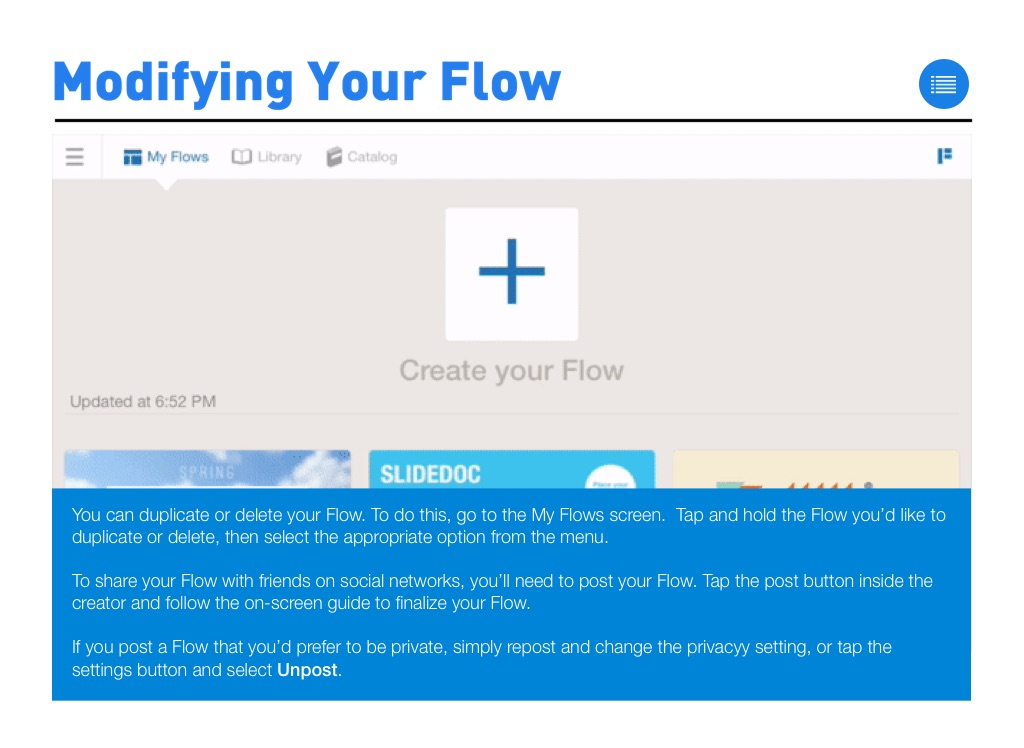
You can duplicate or delete your Flow. To do this, go to the My Flows screen. Tap and hold the Flow you’d like to duplicate or delete, then select the appropriate option from the menu.
To share your Flow with friends on social networks, you’ll need to post your Flow. Tap the post button inside the creator and follow the on-screen guide to finalize your Flow.
If you post a Flow that you’d prefer to be private, simply repost and change the privacyy setting, or tap the settings button and select Unpost.
Downloading Image /
Downloading Image /
Downloading Image /
Downloading Image /
Downloading Image /
Downloading Image /
Downloading Image /
Downloading Image /
Downloading Image /
Downloading Image /
Downloading Image /