






Loading Flow

Downloading Image /
Downloading Image /

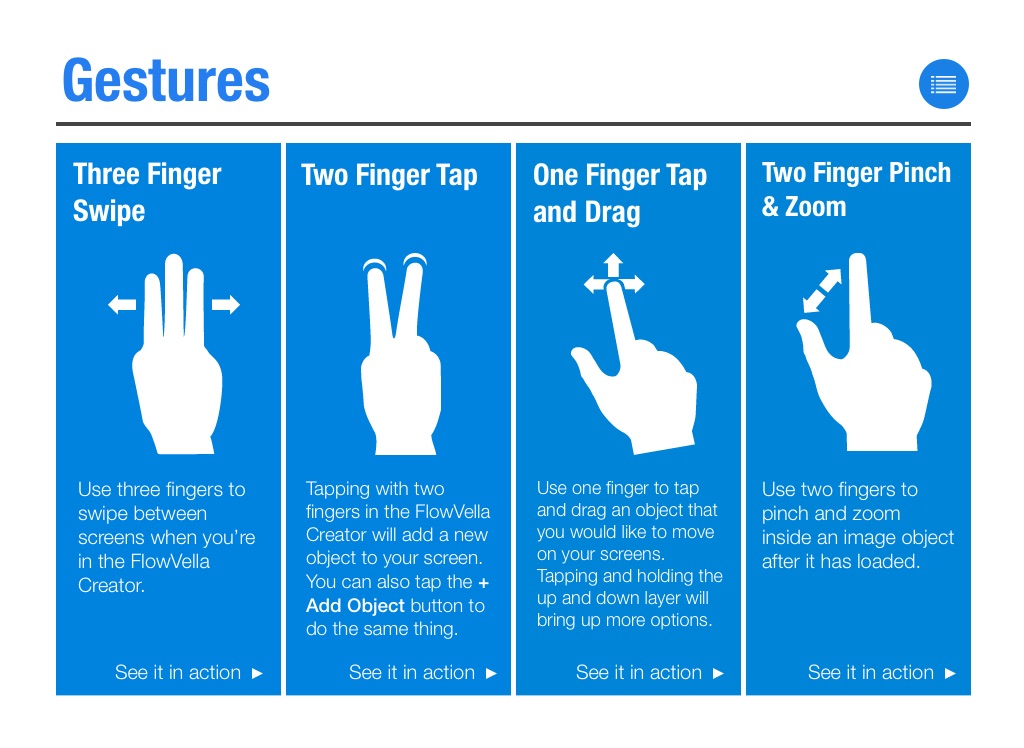
Three Finger Swipe
Two Finger Tap
One Finger Tap and Drag
Two Finger Pinch
& Zoom
Use three fingers to swipe between screens when you’re in the FlowVella Creator.
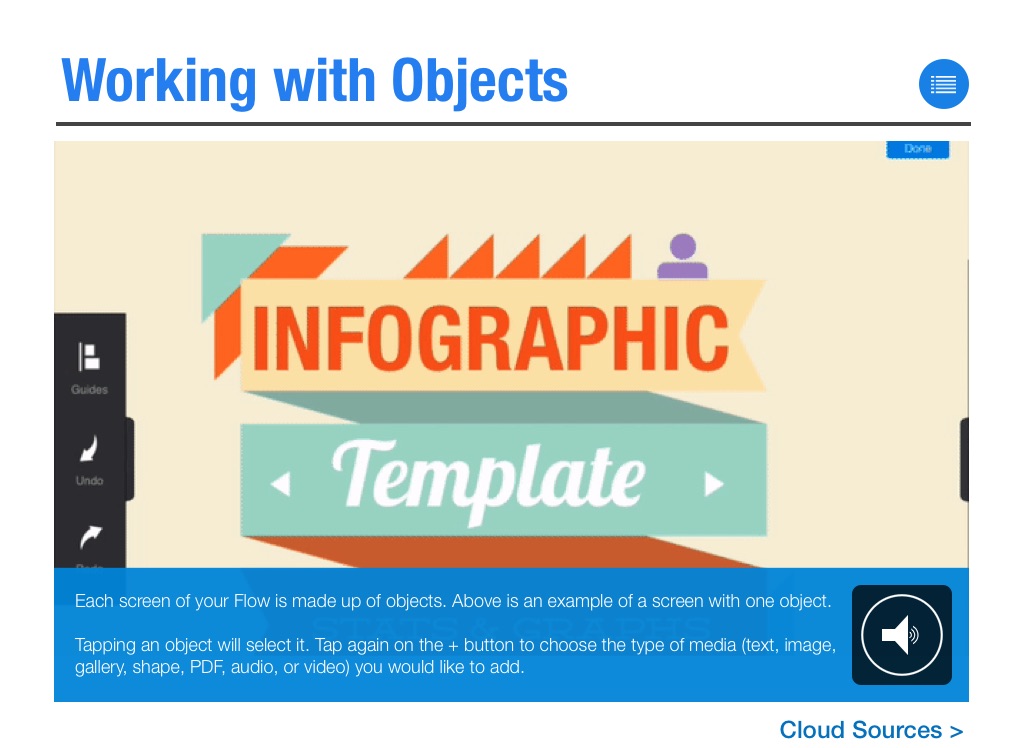
Tapping with two fingers in the FlowVella Creator will add a new object to your screen. You can also tap the + Add Object button to do the same thing.
Use one finger to tap and drag an object that you would like to move on your screens.
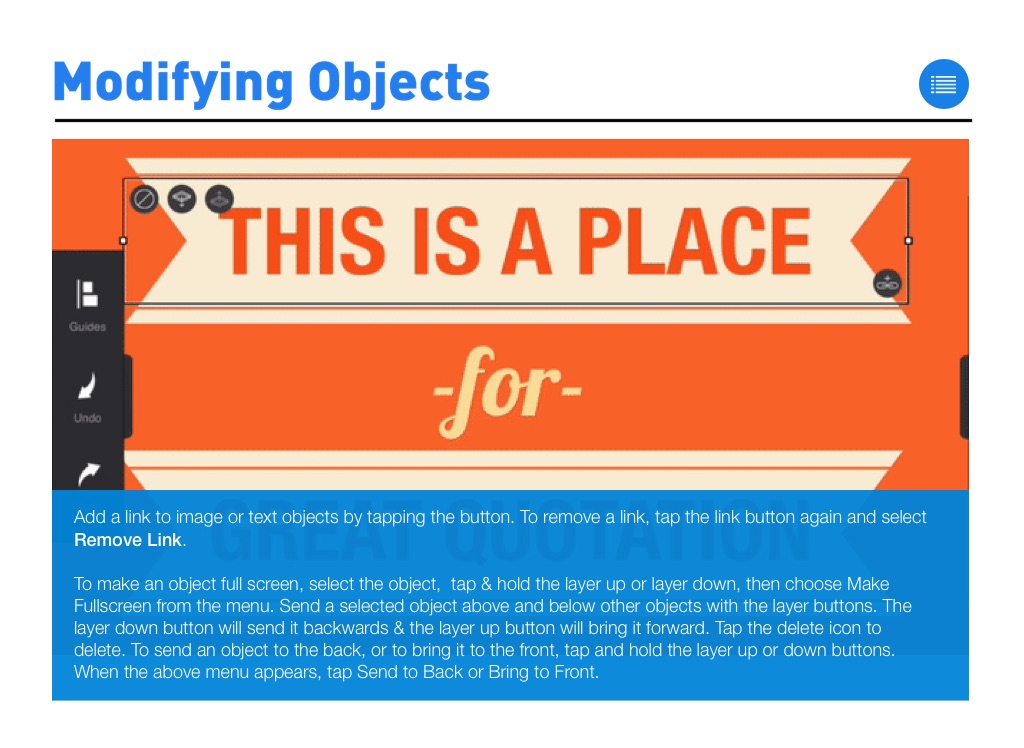
Tapping and holding the up and down layer will bring up more options.
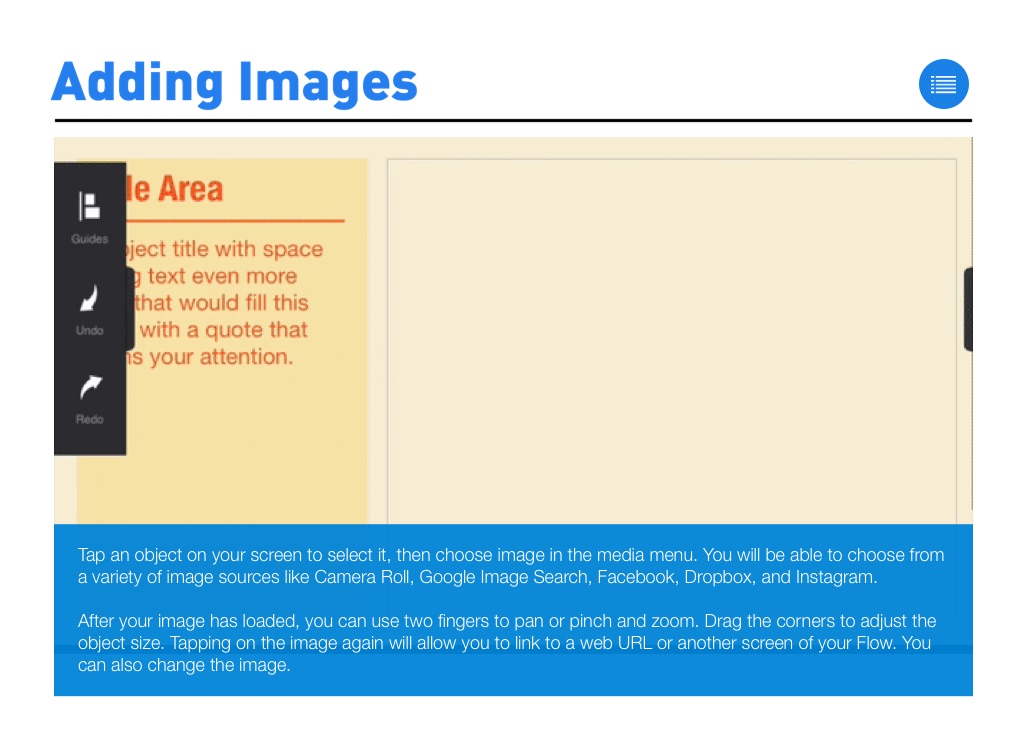
Use two fingers to pinch and zoom inside an image object after it has loaded.



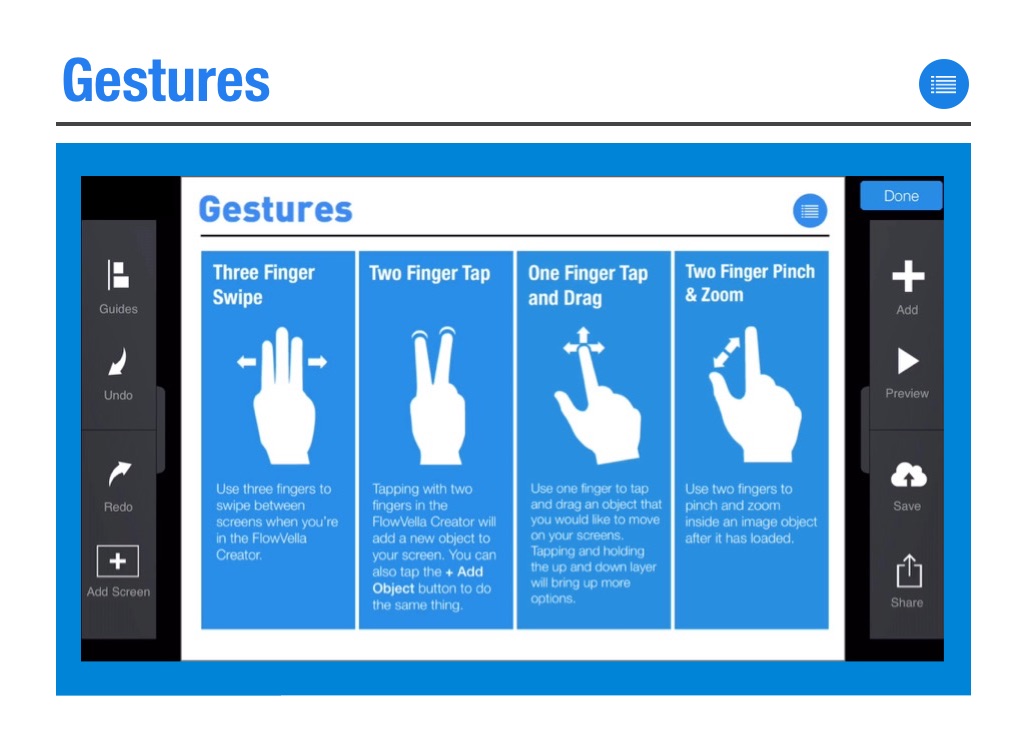
Gestures
See it in action
See it in action
See it in action
See it in action
Downloading Image /
Downloading Image /
Downloading Image /
Downloading Image /
Downloading Image /
Downloading Image /
Downloading Image /
Downloading Image /
Downloading Image /
Downloading Image /
Downloading Image /
Downloading Image /
Downloading Image /
Downloading Image /
Downloading Image /
Downloading Image /
Downloading Image /
Downloading Image /
Downloading Image /
Downloading Image /
Downloading Image /
Downloading Image /
Downloading Image /
Downloading Image /
Downloading Image /